Add Backpocket to your iPhone share sheet
iPhone doesn't let web apps join the share sheet directly, so a free Apple Shortcut does it. Set it up once, in about 2 minutes, then tap Share and Backpocket in Instagram, TikTok, YouTube or anywhere else.
-
Create the shortcut
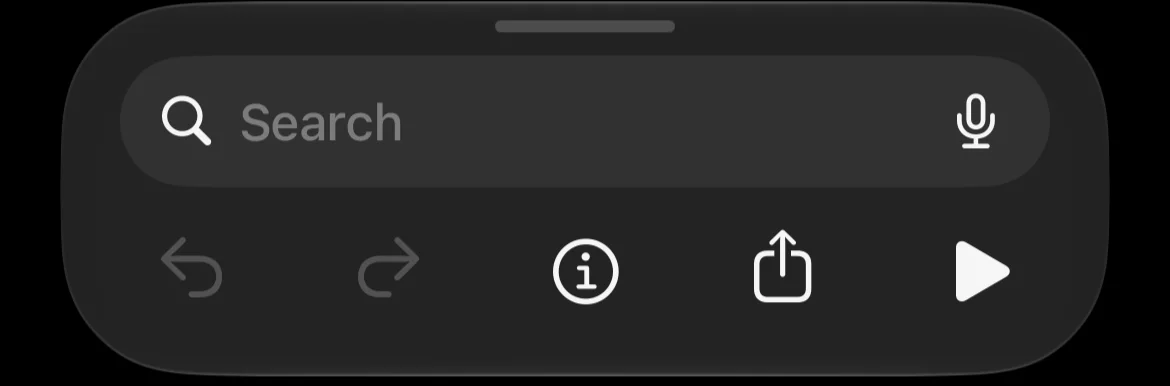
Open the Shortcuts app and tap + to make a new shortcut. Tap the i button in the bottom bar and turn on Show in Share Sheet.
-
Choose what it receives
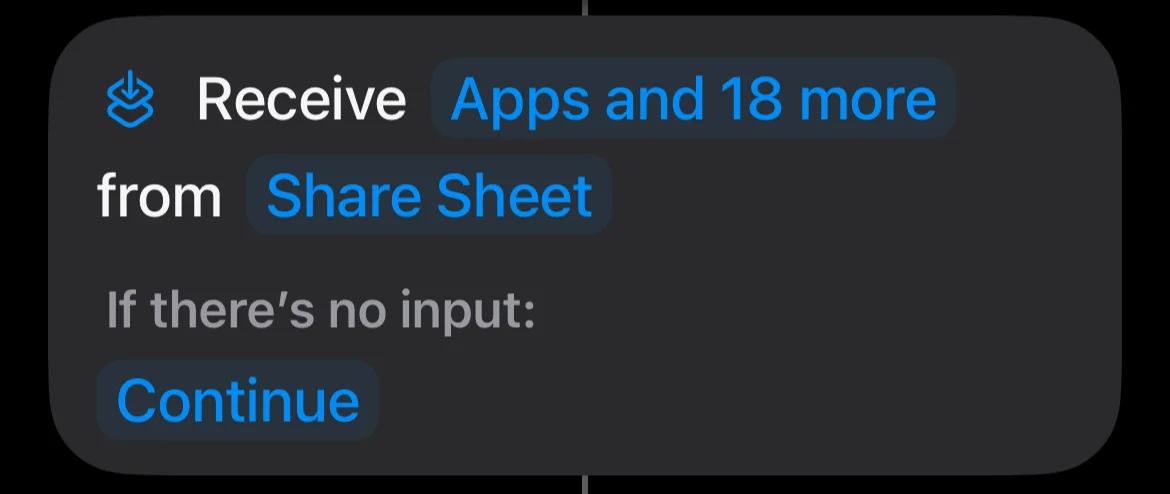
A Receive block appears at the top. Tap its blue input types and make sure URLs and Text are on. Leaving the rest on is fine, it then reads "Apps and 18 more". Leave If there's no input on Continue.
-
Find the link
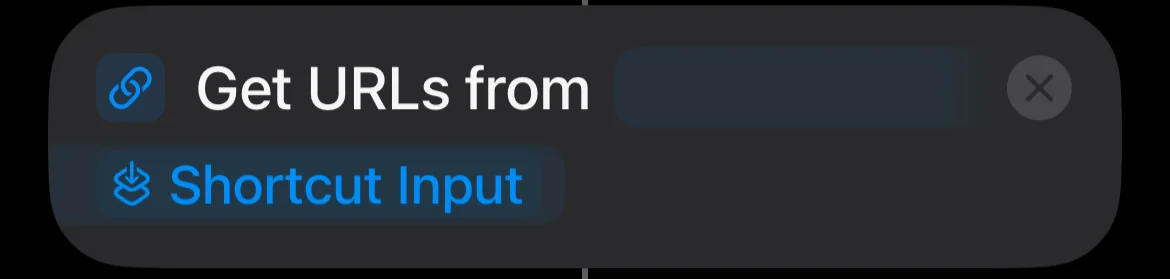
Search for Get URLs from Input and add it. It should read Get URLs from Shortcut Input.
-
Handle shares with no link
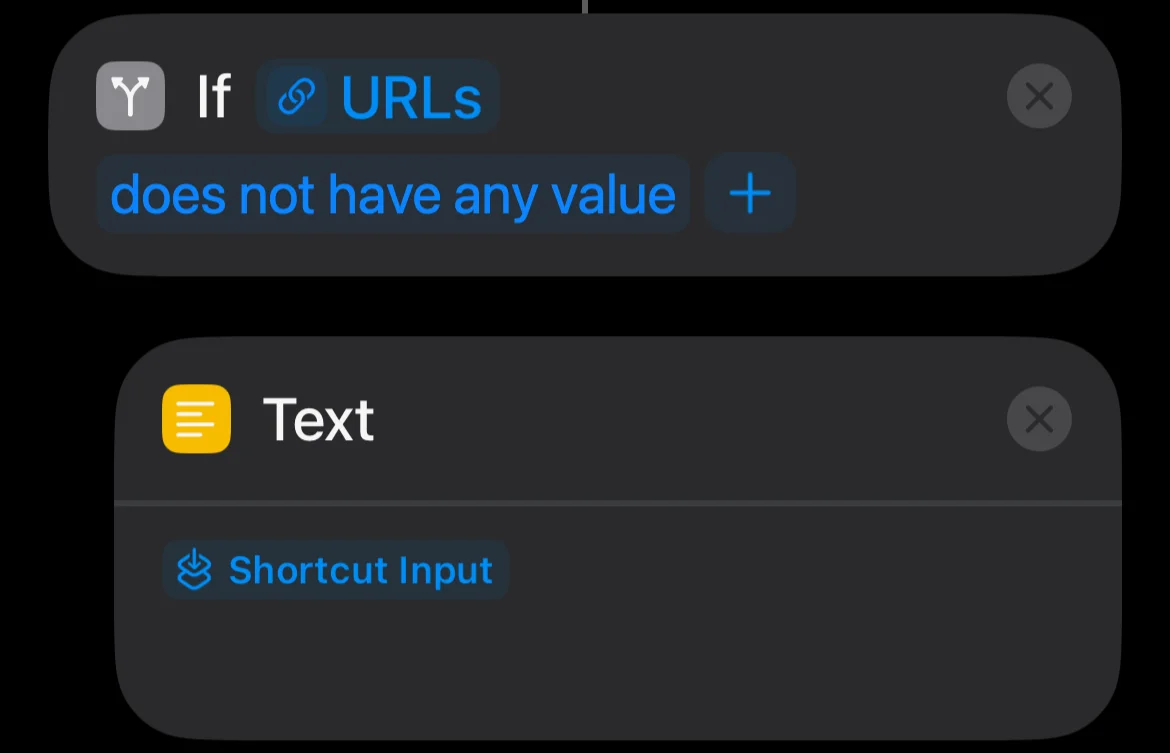
Add If and set the condition to URLs does not have any value. Inside it, add Text and insert the Shortcut Input variable.
-
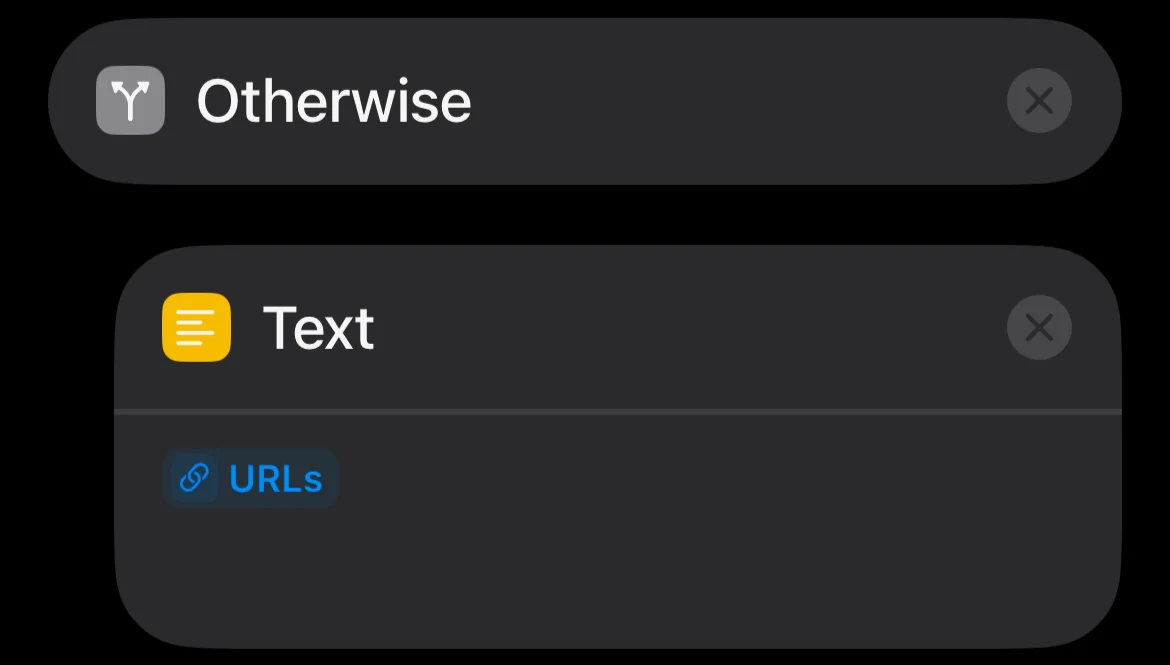
Handle shares with a link
Under Otherwise, add another Text and insert the URLs variable.
-
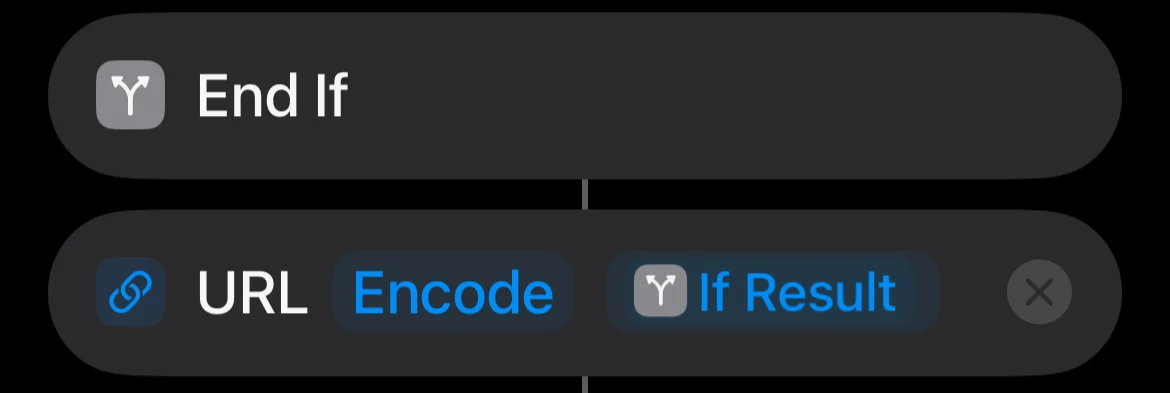
Encode the result
Below End If, add URL Encode and set its input to If Result.
-
Open Backpocket
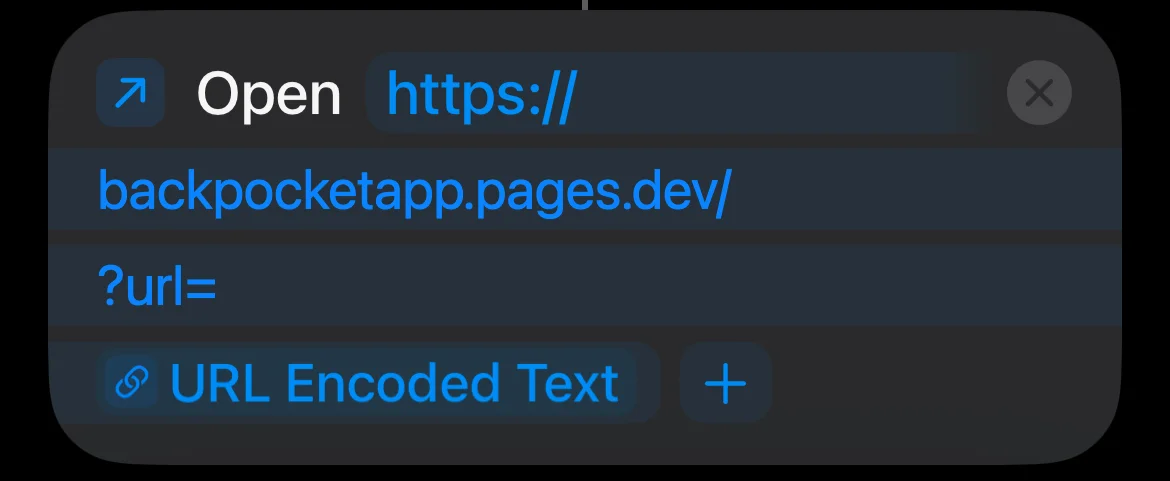
Add Open URLs and paste this link:
https://backpocketapp.pages.dev/?url=Then insert the URL Encoded Text variable straight after it, with no space in between.
-
Name it
Tap the name at the top, choose Rename and call it Backpocket. Then tap Choose Icon to pick one.

Try it
Open any app, tap Share and choose Backpocket. Backpocket opens with the link filled in, ready to save. Some apps show their own share menu first, so look for More or Share to to reach iPhone's list.
Good to know
The Shortcut opens Backpocket in Safari. iPhone keeps a home-screen app's storage separate from Safari's, so sign in to Backpocket in Safari too. Links saved from the share sheet then sync to the same account as your home-screen app.